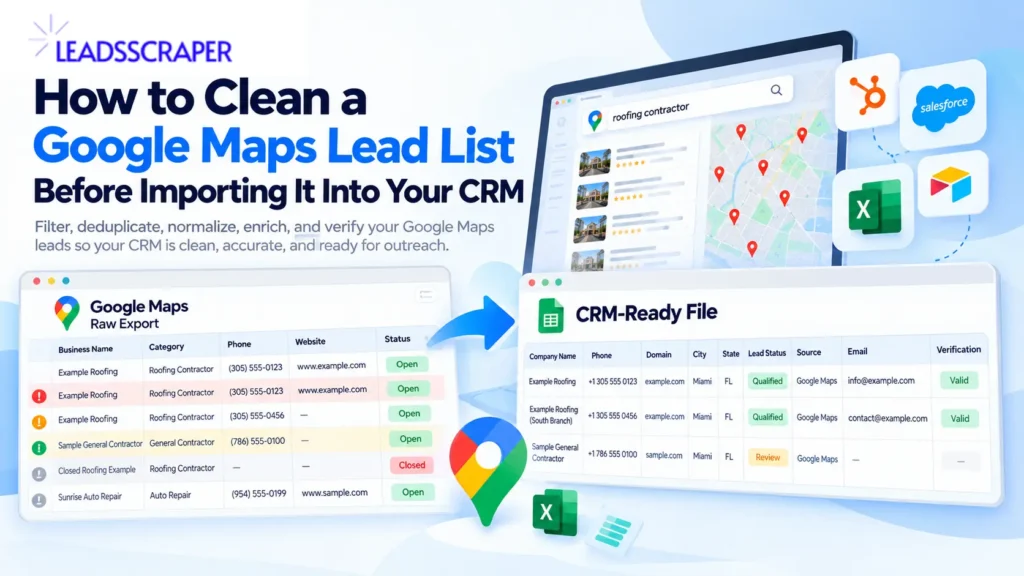
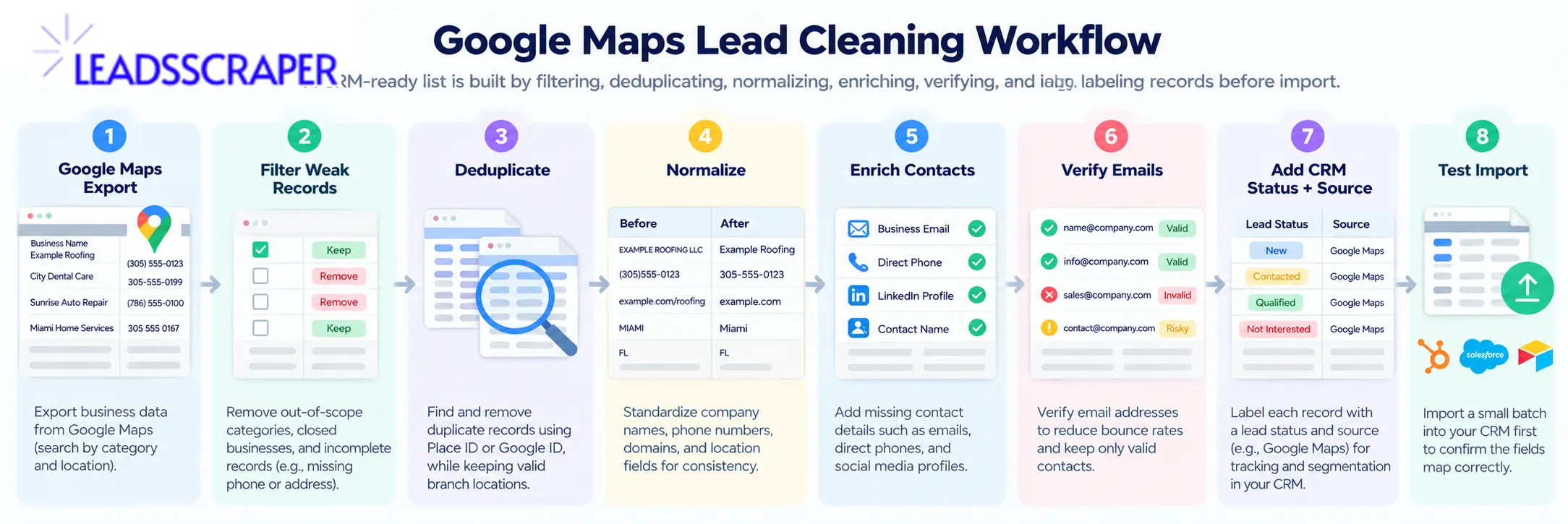
A Google Maps lead list is not automatically ready for your CRM. Raw exports can contain duplicate businesses, closed locations, inconsistent phone and website formats, missing contact data, and records that do not match your target market. Cleaning the list before import gives your sales team a clearer starting point and reduces the chance of creating duplicate or unusable CRM records. This guide shows how to clean Google Maps leads step by step: filter weak records, remove true duplicates without deleting valid branches, normalize key fields, enrich missing contact data, verify emails, and add the source and status fields your CRM needs.
LeadsScraper
Start With a Focused Google Maps List
Before cleaning a file, make sure the scrape itself matches the niche, geography, and business criteria your campaign needs.
Collect Google Maps Business LeadsQuick answer
Before importing Google Maps leads into a CRM, remove irrelevant and closed businesses, deduplicate true repeat records, normalize company and contact fields, enrich missing contact data, and verify emails intended for outreach. Keep source, scrape date, verification status, and lead status in the final file, and use a CRM-recognized unique identifier when updating existing records.
Why a Raw Google Maps Export Is Not CRM-Ready
A scraper creates business records.
Your CRM needs records that your team can identify, segment, update, and use consistently.
Those are not the same thing.
Imagine a web-design agency targeting roofing companies in Miami.
A raw Google Maps export might contain:
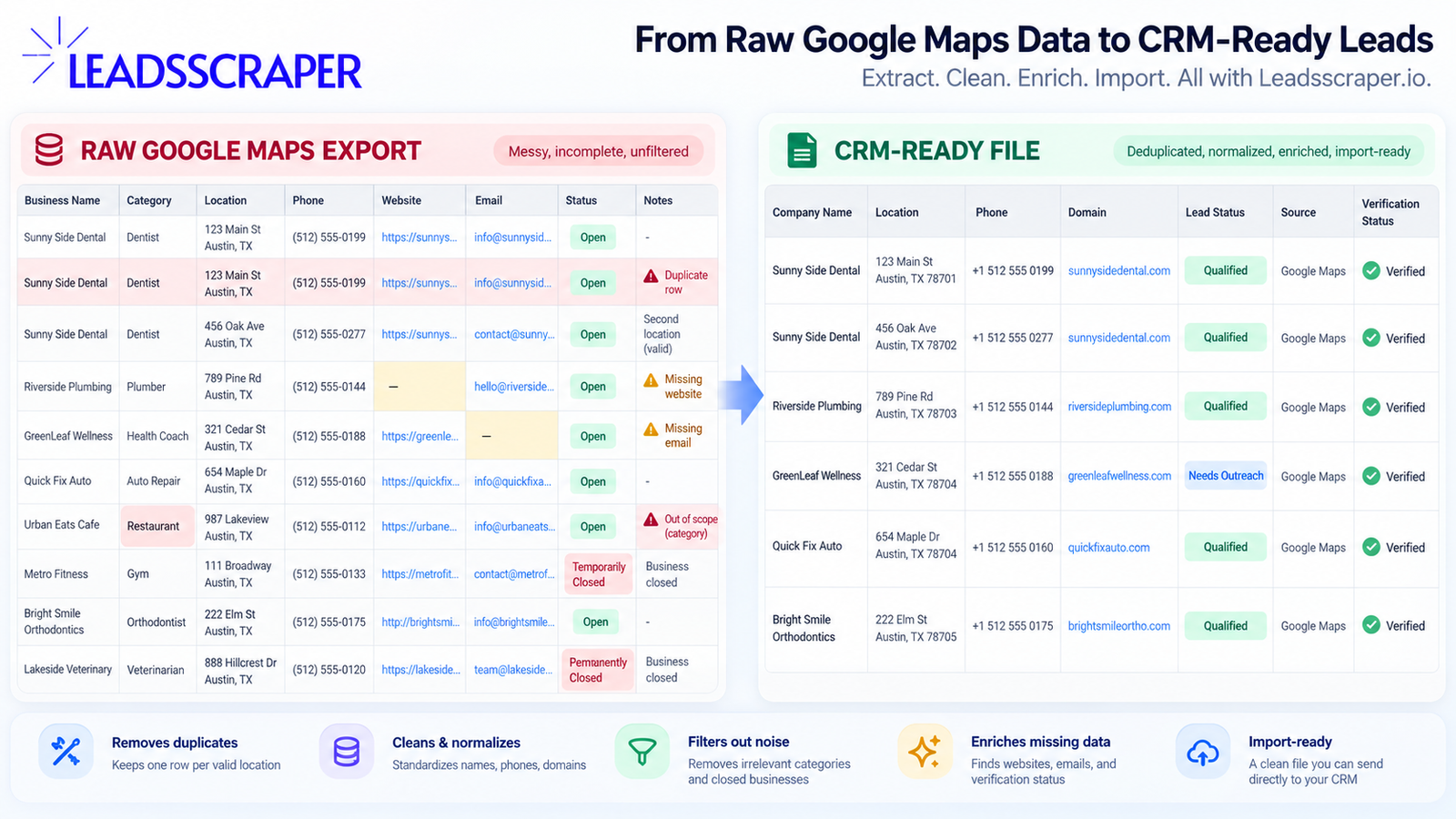
| Business | Location | Phone | Website | Rating | Reviews |
|---|---|---|---|---|---|
| Example Roofing North | Miami | Present | Present | 4.6 | 58 |
| Example Roofing North | Miami | Present | Present | 4.6 | 58 |
| Example Roofing South | Miami | Present | Present | 4.5 | 41 |
| Sample General Contractor | Miami | Present | Missing | 4.2 | 16 |
| Closed Roofing Example | Miami | Missing | Missing | 3.8 | 8 |
Illustrative sample only.
The first two rows might be duplicate exports of the same place.
The third could be another legitimate branch of the same roofing company.
The fourth may be outside the campaign’s roofing-specific criteria.
The fifth may no longer belong in an active outreach list.
Simply importing every row would move those problems into the CRM.
That is why list cleaning should happen between scraping and CRM import.
LeadsScraper’s existing guide to high-intent local business leads already recommends filtering weak records, enriching useful ones, verifying emails, and separating Priority, Review, and Remove records before outreach. That is the upstream qualification step; this article focuses on preparing the surviving records for CRM use.
LeadsScraper
Qualify Before You Clean
If the list still contains weak-fit businesses, filter them before spending time on normalization and enrichment.
Review the Local Lead Qualification WorkflowDecide Which Fields Your CRM Actually Needs
Do not import every available scraper column simply because it exists.
Start with the sales process.
Ask:
What identifies the business?
What tells the team where it is?
What contact path will sales use?
What qualification fields matter?
What source information needs to be preserved?
Which values will need to be refreshed later?
For many local B2B campaigns, a practical company-level file might include:
| Field | Purpose |
|---|---|
| Business name | Company identification |
| Place ID / Google ID | Location-level source identifier |
| Category | Segment or niche |
| Address | Business-location context |
| City / State / ZIP | Territory and routing |
| Phone | Calling/contact path |
| Website | Company research and enrichment |
| Domain | Company matching and deduplication |
| Rating | Public reputation context |
| Review count | Public activity context |
| Business status | Helps identify records needing review |
| Lead status | Priority / Review / Remove |
| Source | Shows where the record originated |
| Scrape date | Shows when the data was collected |
| Outreach contact, when discovered | |
| Email verification status | Shows whether the email was checked |
LeadsScraper’s current Google Maps Data Scraper supports structured exports including CSV, Excel, JSON, and Parquet, while the broader workflow can include enrichment and advanced filters.
Company data and contact data are different
Keep this distinction clear.
A Google Maps business record can provide company and location information such as:
name;
address;
phone;
website;
category;
ratings and reviews.
Email discovery normally happens through the business website or a separate enrichment process rather than the base Google Maps listing itself. LeadsScraper’s own Google Maps tutorial explicitly explains that Google Maps does not provide emails directly and that enrichment is used for additional contacts.
So the workflow should be:
Business record first.
Contact enrichment second.
Email verification third.
That separation prevents a discovered email from being mislabeled as verified.
Remove Duplicate Business Records Without Deleting Valid Locations
Deduplication is one of the easiest parts of lead cleaning to get wrong.
Consider:
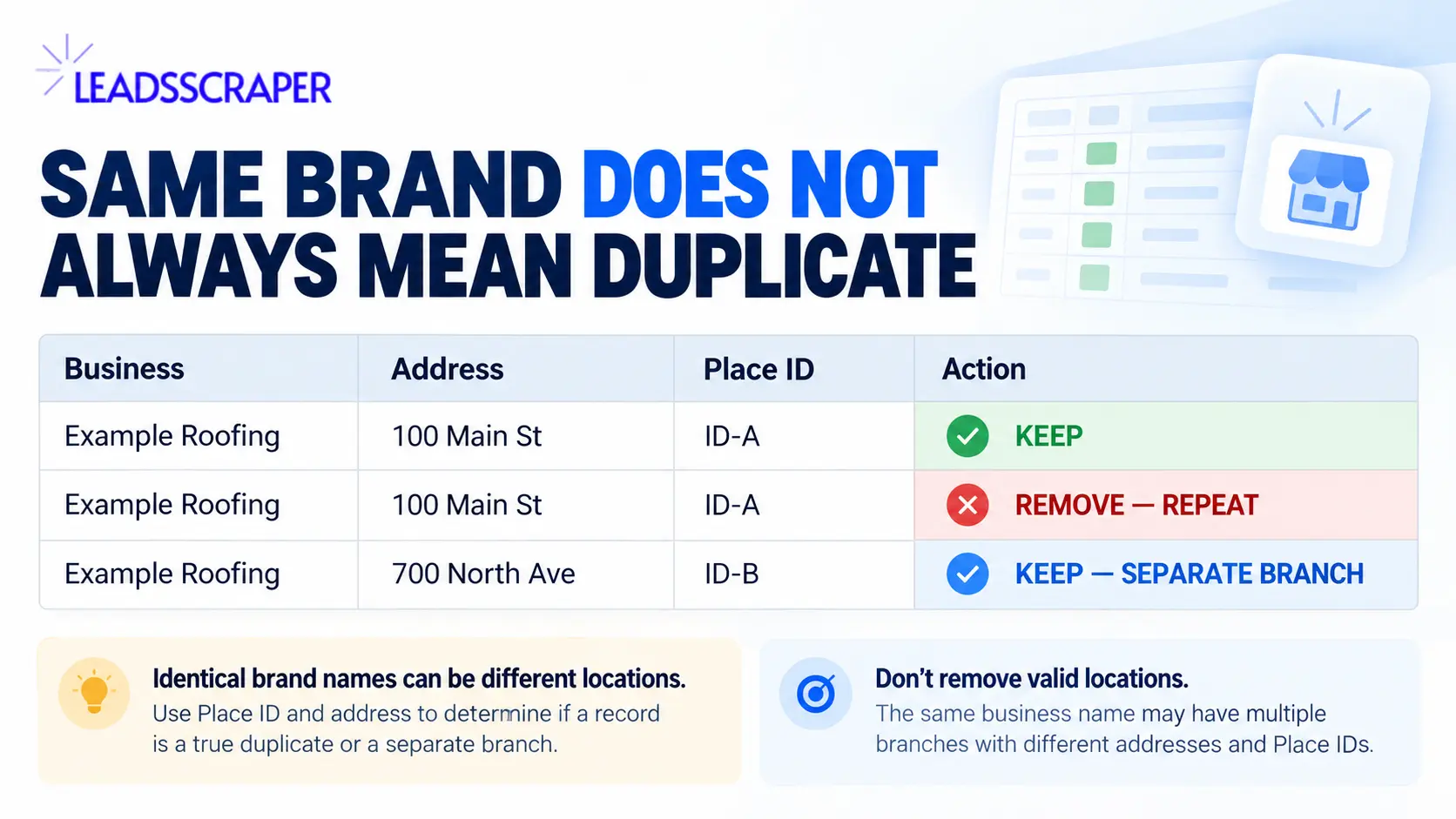
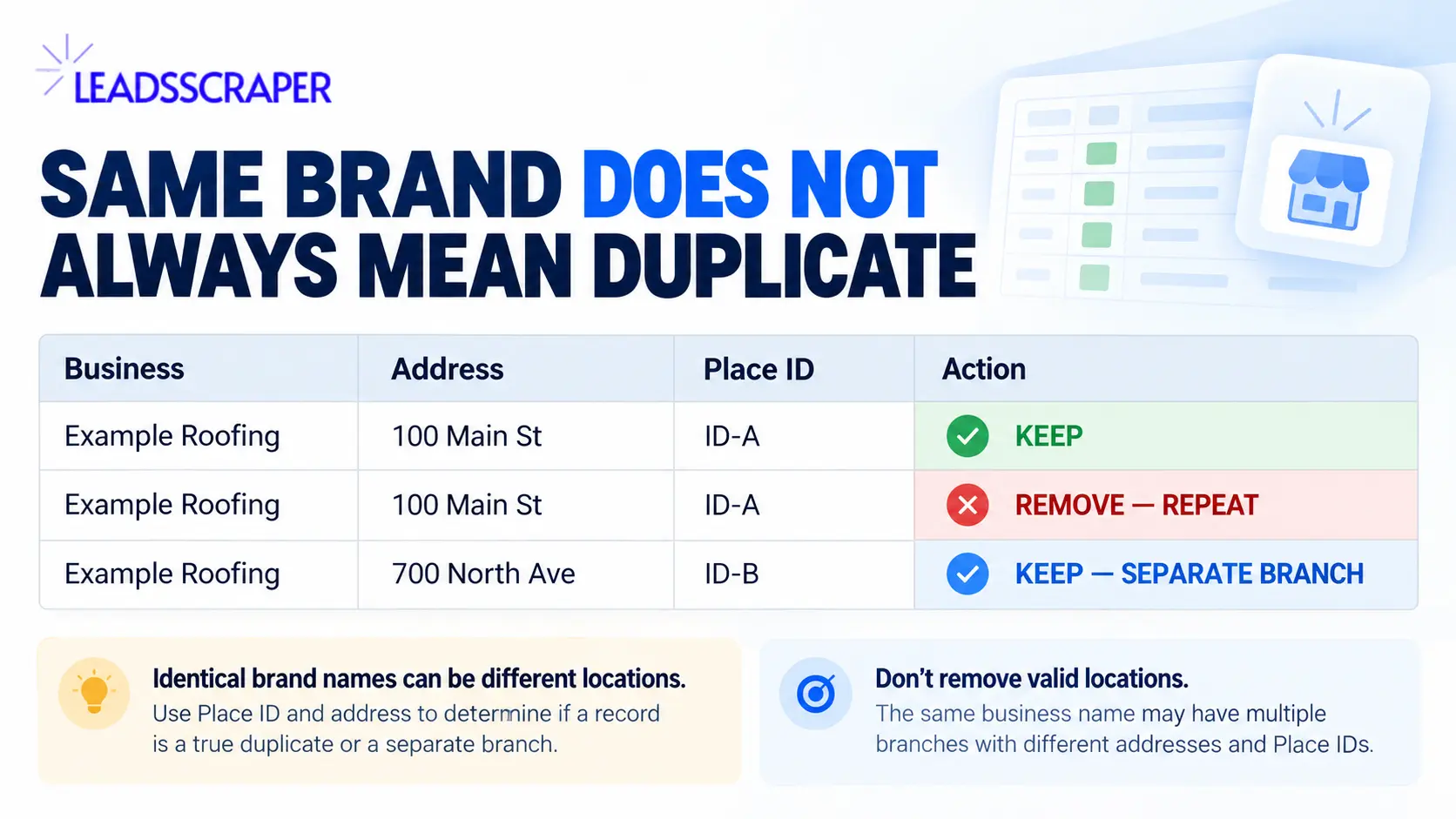
| Business | Address | Place ID | Action |
|---|---|---|---|
| Example Roofing | 100 Main St | ID-A | Keep |
| Example Roofing | 100 Main St | ID-A | Remove duplicate row |
| Example Roofing | 700 North Ave | ID-B | Keep separate branch |
The first two rows represent the same place.
The third may represent another legitimate location.
Do not remove records simply because they share:
business name;
website domain;
phone;
brand.
Chains and multi-location businesses can legitimately share those signals.
Use location identifiers first
Google describes Place IDs as identifiers for places in Google Maps and the Places database. They are useful for distinguishing locations, although Google notes that Place IDs can change over time and recommends refreshing stored IDs older than 12 months.
For one lead-cleaning project, use this review order:
| Priority | Duplicate check | Action |
|---|---|---|
| 1 | Same Place ID / Google ID | Treat as probable repeated location record |
| 2 | Same Maps/location URL | Review as probable duplicate |
| 3 | Same normalized name + exact address | Review manually |
| 4 | Same name + different address | Usually retain as separate location |
| 5 | Same domain + different location identifier | Do not automatically delete |
Keep the location level clear
If your outreach is company-level rather than branch-level, decide how the CRM should represent multi-location businesses after you identify the separate locations.
Do not destroy valid location data during deduplication simply to force the list into one company row.
Normalize Names, Phones, Websites, and Locations
After removing true duplicate rows, standardize the fields that your CRM will use for filtering and matching.
Business names
Keep the source name, but consider adding a normalized version for internal matching.
For example:
| Source name | Normalized name |
|---|---|
| Example Roofing LLC | Example Roofing |
| EXAMPLE ROOFING, L.L.C. | Example Roofing |
Do not overwrite the original source value. Keep both if normalization will be used for matching.
Phone numbers
Choose one consistent format.
For a U.S.-focused CRM, that might mean storing:
+1 305 555 0123
rather than mixing:
(305) 555-0123305-555-01231 305 555 0123
The exact format matters less than consistency.
Websites and domains
Separate the full website URL from the normalized domain when possible.
For example:
Website:https://www.example.com/services/roofing
Domain:example.com
The domain can help with:
company matching;
contact enrichment;
duplicate review.
But do not assume that every location with the same domain is a duplicate.
Geography
Normalize:
city;
state/region;
country;
postal code.
If the campaign targets Miami only, review records that were returned from nearby cities before CRM import.
Empty values
Do not turn missing values into fake placeholders such as:
N/A Company
Unknown Phone
No Website
unless your CRM explicitly requires them.
Blank and unknown are useful states. They tell you which records need enrichment or review.
Enrich Missing Contact Data and Verify Emails
Once the business list is relevant, deduplicated, and normalized, decide which records actually need contact enrichment.
Do not enrich every raw row automatically.
Enrich the records that already meet the campaign’s business-fit criteria.
For example, a web-design agency targeting Miami roofers might keep:
operational roofing businesses;
correct target area;
relevant category;
usable website or missing website status;
valid business record.
Then use the business website or domain to look for additional contact paths.
LeadsScraper’s current contact-enrichment workflow describes collecting public information from associated company websites, including emails, phones, social links, and other available contact details.
Discovered email does not mean verified email
This rule should be explicit in the file.
Use separate fields:
| Field | Example |
|---|---|
| contact@example.com | |
| Email source | Company website |
| Email discovered | Yes |
| Email verification status | Valid / Invalid / Risky / Unknown |
| Verification date | Date checked |
Do not put:
Verified = Yes
simply because an email was discovered.
LeadsScraper’s Email Address Verifier currently checks signals including syntax, domain status, MX records, and mailbox status, and supports bulk CSV verification.
Verify close to outreach
Contact data changes.
If a lead list has been sitting unused for a long period, re-check critical outreach fields before launching the campaign.
Verification reduces uncertainty. It does not guarantee:
inbox placement;
a reply;
sender reputation;
consent;
campaign performance.
Those depend on additional factors beyond whether an address appears deliverable.
LeadsScraper
Add Contact Data Only After Qualification
Use enrichment after weak-fit businesses and duplicate records have been removed so you are not paying to research records the campaign will never use.
Review Contact EnrichmentAdd Source, Status, and Import Fields Before the CRM
The final file should explain where every lead came from and what should happen next.
At minimum, add:
| Field | Example |
|---|---|
| Lead source | Google Maps |
| Search query | Roofing contractors Miami |
| Scrape date | 2026-10-31 |
| Target niche | Roofing |
| Target market | Miami |
| Lead status | Priority / Review / Remove |
| Enrichment status | Complete / Not needed / Needs enrichment |
| Email verification | Valid / Invalid / Risky / Unknown |
| CRM action | Create / Update / Exclude |
Keep existing customers out of new-prospect imports
If the company already exists in your CRM, decide whether the record should:
update the existing company;
be excluded from prospecting;
be associated with another location;
be sent to manual review.
Do not create another company record simply because the scraped spelling is slightly different.
Use CRM-recognized identifiers
The exact import rule depends on the CRM.
For example, HubSpot’s current import documentation says that updating existing records or avoiding duplicates requires a unique identifier. Record ID can be used for all objects; email can identify contacts, and company domain can identify companies. Without unique identifiers, imports can create duplicates.
That principle applies beyond one CRM:
Understand what your CRM uses to identify an existing record before importing the cleaned file.
Do not assume company name alone is a safe update key.
Example of a CRM-ready file
| Company | Domain | Place ID | Phone | Email status | Lead status | Source | CRM action | |
|---|---|---|---|---|---|---|---|---|
| Example Roofing | example.com | ID-A | +1… | sales@… | Valid | Priority | Google Maps | Create |
| Example Plumbing | exampleplumbing.com | ID-B | +1… | — | — | Review | Google Maps | Review |
| Existing HVAC | existinghvac.com | ID-C | +1… | contact@… | Valid | Existing | Google Maps | Update/Exclude |
Illustrative example only.
Final pre-import checklist
Before uploading the file:
target niche is correct;
target geography is correct;
closed or irrelevant businesses have been removed;
duplicate place records are removed;
valid branches remain separate where needed;
company names are standardized;
phones are consistently formatted;
websites/domains are normalized;
contact enrichment was applied only where useful;
emails intended for outreach were verified;
source and scrape date are preserved;
lead status is assigned;
existing customers have been checked;
CRM update/create rules are defined;
a backup of the original file exists.
Then test the import with a small sample before sending the full file.
A cleaner CRM starts before the import.
The goal is not to move the largest possible spreadsheet into your sales system. It is to preserve the business records that fit the campaign, make the important fields consistent, verify the contact paths you plan to use, and keep enough source information to understand where every record came from.
That makes the list easier to route, update, review, and use.
LeadsScraper
Build the List, Then Clean It Before Outreach
Start with one niche and one location, collect the business records, and apply the cleanup workflow before the file reaches your CRM or sending tool.
Get Started FreeFAQ
Not automatically. A business may still be useful for phone outreach, manual research, or later enrichment. Use the campaign requirements to decide whether a missing email means Remove, Review, or Enrich.
No. Businesses can have multiple legitimate locations with the same brand name. Compare Place ID or Google ID, address, and other location signals before treating records as duplicates.
Usually not. Filter poor-fit and irrelevant records first. Enrichment is more useful after the list has been narrowed to businesses that match the campaign.
If email outreach is planned, yes. Discovery and verification are separate steps. An email found on a company website should not automatically be treated as verified.
Use the unique identifiers supported by your CRM. For existing records, this may be a CRM Record ID, company domain, contact email, or another property configured as unique. Do not rely on company name alone unless your CRM and data model specifically support it.